Interface Guide /
Tree List Interface
Concept
YamPiz continuously strives to provide a more intuitive user experience. For multi-level data classification, it adopts a directory-based management approach, similar to the file management system of a computer operating system. Using drag-and-drop operations and the left and right mouse buttons, users can easily perform complex configuration tasks.
Tips
- The maximum folder depth may vary depending on the website.
- Right-click the 'Text' next to an icon to access options for changing properties, renaming, creating categories (directories), and deleting categories (directories).
- Right-click and hold the 'Icon' to the left of the text to move items (indicated by a red dashed outline) or change their order (indicated by a red horizontal line).
Instructions
- Expand and Collapse Folders
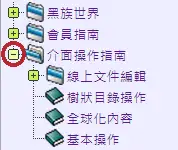
Click the '+' or '-' symbol to the left of an item to expand or collapse a folder. Some website applications dynamically load folder contents when expanded, which may require a short loading time. See the red-circled areas in the image below:
- Create a Folder or Directory
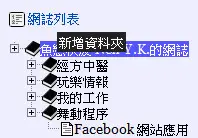
To create a new folder, simply right-click the name of its parent folder. The « Create Folder » option will appear, as shown below:
- Rename a Folder
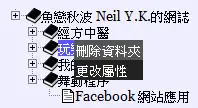
To rename a folder, right-click its name to open the « Folder Menu », then select 'Change Properties' to open the settings dialog. As shown below, click the icon next to the 'Name' field to configure the folder name in other languages. The actual functionality may vary depending on the website.
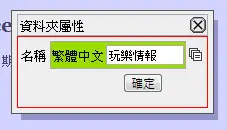
- Move Files and Folders
The restrictions on moving files and folders vary depending on the website application. If an item cannot be moved, the application may simply not support this feature. To move an item, click and hold the small icon to its left with the left mouse button, then drag it onto the icon of the destination folder. A dashed outline will appear around the target icon. Release the mouse button to complete the move. When moving a folder, please note that folders containing subfolders may exceed the maximum permitted folder depth and therefore cannot be moved. See the example below:
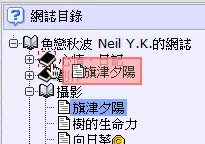
- Reorder Folders
To change the order of an item, click and hold its small icon with the left mouse button, then drag it to the line immediately to the left of the destination folder's icon. A horizontal insertion line will appear to indicate the new position. Release the mouse button to complete the reordering, as shown below:
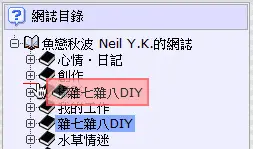
Development
QR Code & App Launcher
Help
This Page

In the relevant service tab, scan the QR code to open it on a mobile device or click the link button to open it on this device to access the webpage or perform app-related operations.
Visitors
- Visitors : 949,456
- Auto Platform
For better browsing experience, it will auto detects your device to display webpage. - Bug Report
Tell us about the idea, problem and errors you found. - Comodo Secure
The sensitive data transmission adopts by SSL-2048 authenticated encryption. - Copyright
© 2009 YamPiz Digital Inc. & Jaby Group. All rights reserved. - Revised Version
V2.2.851
15 Nov 2026 (GMT+8)